Digital security tutorial
What to know about “VPNs”
Last updated April 26, 2025
What’s a “Virtual Private Network” tools (VPNs)? How do they help? Are they safe? And should you be using one? This tutorial will dive into all those questions! The best part is, we can take a few minutes and save you lots of money in the long run!
💡 What is a VPN?
A VPN is sorta like a car with tinted windows. You “get into it” and can use it to “drive around” the internet without people around you seeing where you’re going.
More technically: A VPN is a tool that allows you to create a secure connection to a server, without other “local users” seeing the places you’re browsing.
When should I use a VPN?
Places like coffee shops, airplanes, hotels, and libraries all provide you with WiFi access to the internet. But their WiFi networks rely on open and insecure connections to make them work. This just means that all the people who are connecting to the WiFi—if they were motivated enough—could see what the other users on the WiFi network were connecting to in some cases.
So anytime that you’re connecting to an insecure WiFi (anyplace that isn’t your home or work, basically), you should turn on a VPN to make your WiFi connection more secure.
🤷 Which VPN should I use?
There are lots of services out there that run VPNs you can buy access to. For $5 a month you can get access to a commercial VPN provider like Private Internet Access. But here’s the problem with them: You have no idea what they’re doing with your data.
They could be making sure no one’s watching your data as it passes from your computer to their server, but then they might be recording your data on their server, and keeping logs of what you’re doing. Or maybe they suck at setting up their server, and someone can easily break in and watch what all their users are doing! (I removed a link to NordVPN from this article because they were hacked, for example.)
Not to mention that the more devices you connect, the more it costs — and if you’re a big team with a small budget, like at a non-profit or a community activism group, that’s untenable.
Don’t get me wrong: Lots of people use these services and they are probably fine. You can see a very detailed chart of most of the known VPN services, with information about their practices, at “That One Privacy Site” to get an idea of who the good companies are, and who you can’t trust. For some folks, using a commercial VPN is fine—it’s easy, no maintenance, and the chances of something going awry are probably not that big.
Moreover, setting up your own VPN was—until recently—wickedly difficult. Even the easiest packages (Algo VPN and Streisand VPN) required a level of competency above what most people have when it comes to setting up and managing servers. So the calculation was that it’s better to use a commercial VPN and take the chance that they might be selling data, or set up insecurely, then not use one at all, or take hours or days to set one up themselves.
Outline is a super simple and secure VPN you can set up in 10 minutes or less
For the first time, we have a tool that makes it so easy to set up your own server anyone, including you, can start using it in just a few minutes.
This tool is Outline VPN, which was created to help journalists have more secure internet connections.
Let me count the ways this is a better deal for you than a commercial VPN:
- It’s incredibly easy to set up
- Set up is very fast and there is no maintenance
- You can have more people on one account for a much lower cost
- The VPN server is yours, so there’s less concern about a your data being monitored and sold
Instead of the dozens, or hundreds, of steps required before to set up your own VPN, it’s now all done in just a few steps using a graphical interface just like any other program you use. Simply:
- Register an account on DigitalOcean (a web server provider)
- Download, install, and run Outline Manager
- Download, install, and run Outline Client
- Push “connect.”
That’s it. The whole process takes about 10 minutes. No coding involved, no server management, no technical expertise required.
Anything I should know before I spend 10 minutes setting this up?
A few disclaimers to start: First, this tool was created by a Google subsidiary. This might make some people nervous because of Google’s history of using free services to gather marketing data. There’s less cause for concern because, unlike something like Gmail, you own the VPN server* and no data is flowing through Google. There’s no mechanism for them to collect data. We know this because all the programs in Outline are open source, which means that people who understand how these things work can — and have — look at the code itself to make sure there’s nothing in there that could be dangerous or harmful to users.
Second, there is a speed “cost” to using a VPN — it’s not terrible, but it is noticeable. Pages may load slower and files may take longer to download when your VPN is turned on. You’re making a tradeoff between safety and speed on public networks. Assuming your home WiFi is set up properly, there’s really no reason to use it at home, or at work, so turn it off on those networks to get your best available speed.
And third, if you want to use a VPN because you believe you’re under threat from a government-level actor, you’ll want to consult with security experts about whether this VPN will protect you against the threats you’re facing. This tool is intended to help journalists have a safer connection to the internet, but it may not be able to protect your privacy in the face of government-level snooping. Your biggest benefit in using this VPN will be making your internet surfing safer on public WiFi networks.
Let’s set up Outline
Open the Outline VPN website: https://getoutline.org
I’ve put together the video below to allow you to watch the process of setup. The video is about 15 minutes long, but that’s because I’m explaining how things work — the actual steps only take a few minutes. If you don’t want to watch, there are instructions below. (Note that the interface has changed slightly since I created this video, but all the steps are mostly the same.)
- Have you ever set up a DigitalOcean account before? If not, do that first before anything else. Go to the DigitalOcean website and click “sign up.” [Disclosure: This is a referral link — you’ll get $10 in credit on DigitalOcean and I’ll get $25 in credit if you end up billing $25 or more.] Make sure to complete the process of setting up your account by validating your email address and adding credit card information. If you don’t complete that process, you may encounter errors when you start setting up the VPN. It’s also imperative you also add 2-factor authentication to your account for maximum account security.
- Go to the Outline VPN website and download the Outline Manager program. Then install and run it. It’ll ask you to log in to your DigitalOcean account. Once you do, you’ll then be asked to authorize the connection between Outline and your DigitalOcean account — check the box and approve the connection.
- Select a server by choose the one closest to your home, or the location in the world you’ll most often turn on Outline VPN. After that, the setup process will run for about two minutes.
- Outline Manager will bring you to the VPN server management screen. You’ll now be given the option to connect your computer to the VPN; just follow the tooltip instruction in Outline Manager to download the Outline Client onto your computer — this tool sets up the secure VPN connection between your computer and the server you just set up.
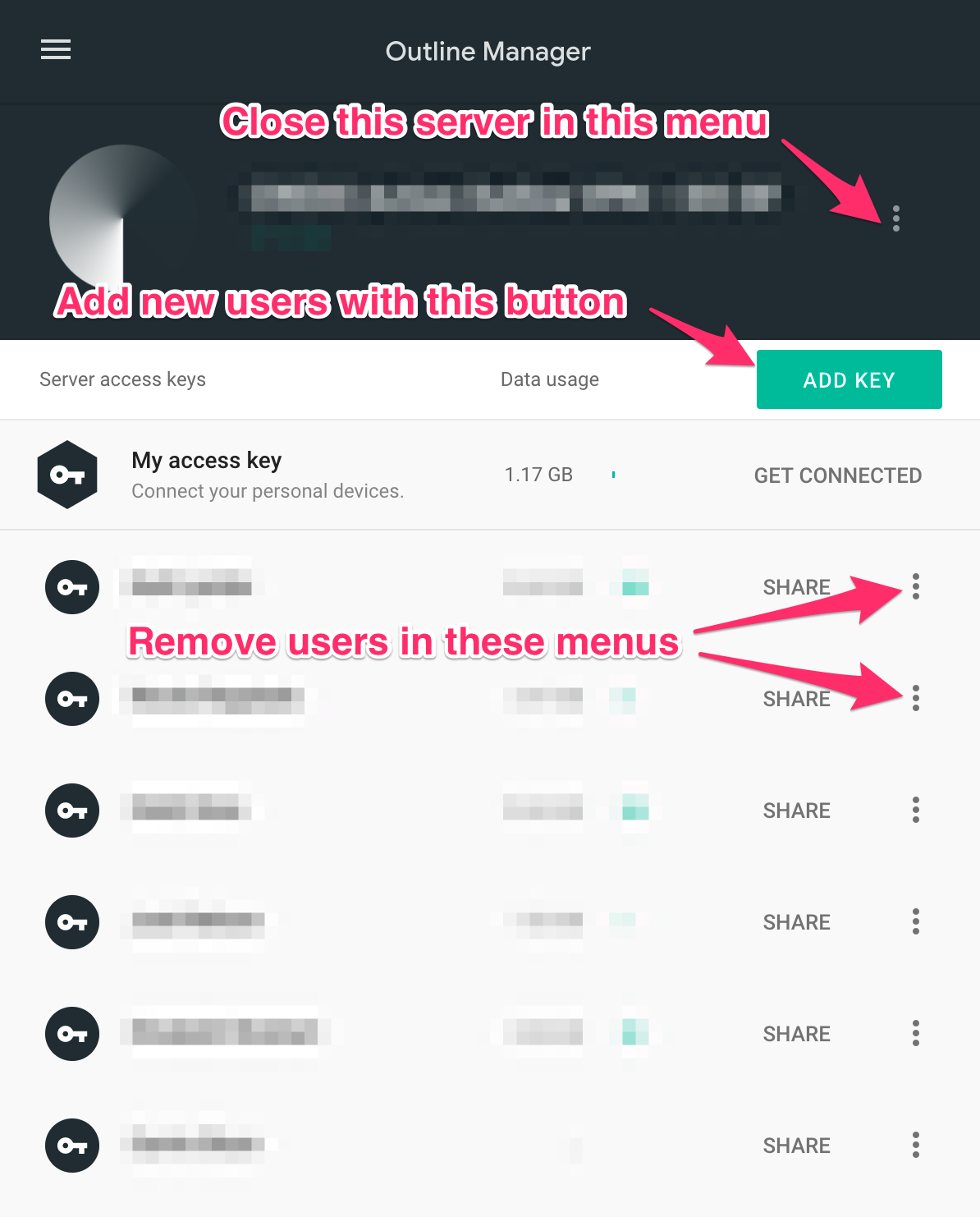
- Back in the Outline Manager, you can also add other “keys.” The rule here is one person, one key. So if you have a spouse, or friend, or teammate you want to be able to use this, give them a key, and they can use that key on all of their devices (laptop/desktop, phone, tablet). Outline guides you through the process of creating new keys, and provides a handy template email that includes a link to instructions for each person you create keys for. You can rename each key in Outline Manager so you know who you gave it to.
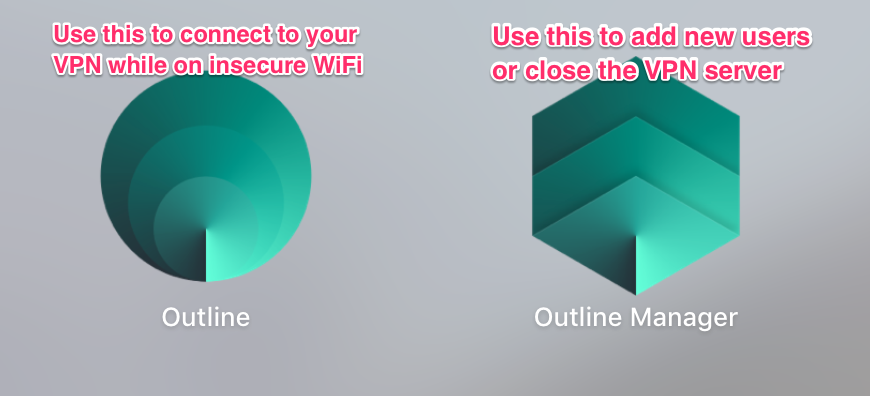
The two Outline programs that will be installed on your computer once setup is complete.
What’s next?
Now you’re done! Use the Outline Client (you’ll see it in your toolbar) to connect to your VPN whenever you’re on a network you don’t trust.
Remember that DigitalOcean will bill you for the server you created. The cost is quite low — Outline VPN automatically puts you on the lowest tier server (DigitalOcean calls them “droplets”) which costs just $5 a month, and provides 1 TB of data transfer. Chances are you’re probably only using a fraction of that, like 5% to 25%, a month in total while at home. Nonetheless, I recommend you log into DigitalOcean occasionally to check your billing and make sure you’re paying what you expect.
You can always open the Outline Manager program on your computer to add new keys for other friends or family that you want to use the VPN, or delete keys you no longer want to use. (See below for a screenshot.) You’re the only one that can do this. Friends you give the keys to can use them, but can’t change or delete them from your VPN server.
If you decide you don’t want to pay anymore, just use the menu in Outline Manager next to the server name to “forget” the VPN server. You’ll be billed by DigitalOcean for the time you’ve used up to that point, and for nothing after.
If you don’t want to set it up yourself, CampaignHelp can do it for you—and onboard your whole team
Check out our pre-packaged project with clear pricing:
Move your team to a self-hosted VPN🕹️ How do I use my VPN?
For the most part, your VPN will be extremely easy to use: Turn it on, turn it off. But you’ll need to know when to do that for the best results.
As per above, you want to only use your VPN when you’re on insecure WiFi. Your VPN routes your browsing traffic through another server in the path to your destination, which means that it will slow down your browsing a little bit, and a little bit adds up to a lot over time, so only use it when you actually need it.
You also need to turn off your VPN before connecting to a new WiFi network. For example, if you just boarded a plane and want to connect to its WiFi network:
- Open the VPN client and disconnect
- Connect to the plane’s WiFi network
- When the WiFi network is connected, connect to the VPN.
🤕 Troubleshooting
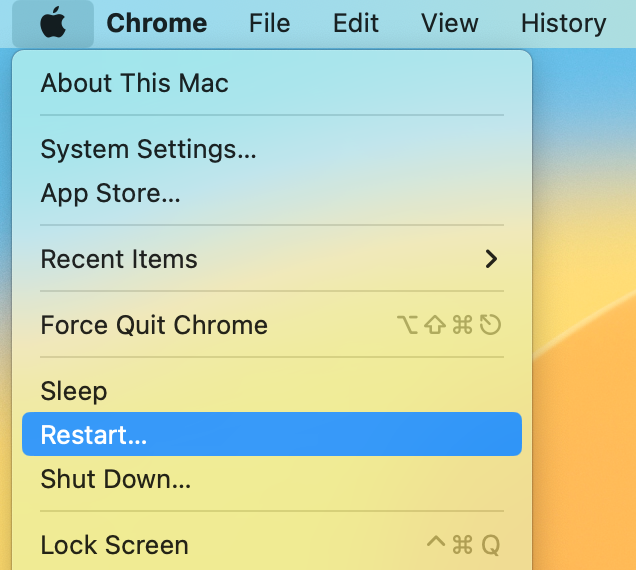
If you’re having trouble with your VPN, start your troubleshooting process by restarting your computer. It’ll fix connection problems many times!
Second, make sure you’re fully connected to a browsing-capable internet connection. You can disconnect the WiFi and see if you can do anything at all. If you’re having just as much trouble when the VPN is turned off, then it’s probably the connection.
If you’re still having trouble: Call for help! CampaignHelp is here for you.