
Digital security tutorial
If you’re worried about phishing, or AI impersonation, this 1Password trick can help
Last updated May 4, 2025
Picture this: you’re heads-down on a busy afternoon when a “colleague” rings, voice slightly off, but asking for an urgent wire transfer.
Deepfakes and AI voice clones make that scenario less sci-fi every day, and the usual caller-ID tricks no longer cut it. We need a fast, foolproof way to confirm that the person on the other end is actually part of the team.
The good news is you already have the tool in your pocket, at least you do if you use 1Password. No extra apps, no hardware tokens, and no costly systems—just a tiny tweak to your existing password manager that adds a strong “human firewall” against AI impersonation, phishing, and panicked last-minute requests.
In the tutorial that follows, you’ll set it up in minutes, bake it into your phone procedures, and sleep a little easier.
🧑🏻🏫 Here’s how it works
1Password has a “one-time code” generator built right into its password records. You’ve probably used this with 2-factor authentication before when it asks for an “authenticator.” You scan the QR code, or enter a code into the field, and 1Password starts providing a six-digit code every 30 seconds that looks like this:
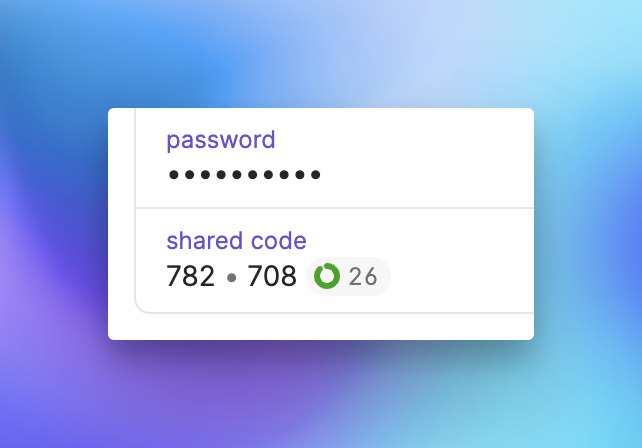
While these codes are normally used as a “shared secret” between you and a login system, you can also use it as a shared secret with you and your team! After setting this up, two or more team members can read the code—if both employee codes agree, then you’re secure. If not, you cut communications and fall back on other methods of verifying each other.
🏗️ How to set it up
It only takes a moment to set up a code in your 1Password Shared Vault, but there are a few things we also need to check before we begin:
📋 Required prerequisites
- 1Password Business (or Families): For this to work, you’ll need access to the “Shared Vault” and item-level permission controls, which is only available on this account level.
- Strong 1Password primary passwords & 2-factor authentication enabled: To ensure everyone’s vault is secure, you’ll need to enforce stronger passwords (14 characters!) and require that everyone using 1Password have 2-factor authentication enabled.
… and, we’ll also need to create an alternative way to connect if numbers don’t match—which could mean someone’s being impersonated–which we’ll talk about below.
:1password-logo: The 1Password entry
- Open the Shared Vault in 1Password and add a new Login entry.
- Rename the entry to: Shared Team Code for Verbal Recognition
- You can leave the Username field blank.
- In the password field, generate a secure password of over 25 characters.
- Copy the password and save the login entry.
- Now open this page on IT Tools.
- In the first box, enter the password you copied.
- When the second box fills, click the copy button.
- Reopen your login entry in 1Password and click Edit.
- Add a “one-time password” field and paste the entry you just copied from the Base64 generator on IT Tools.
- Save the login entry. You should now see a password field, and a one-time password field with a six-digit code that’s counting down to 0.
🤝 When to use it
- Anytime you need to confirm that the person on the phone is who they say they are
- Anytime you need to confirm large payments (via wire, etc.)
📲 How to use it
When a sensitive request comes in:
- Connect to each other using a known number on file.
- For example, if the Executive Director texts that they needs a wire transfer, the Finance Team member should call the Executive Director at their normal phone number.
- Both parties open the Shared Team Code for Verbal Recognition in the Shared Vault in 1Password.
- The caller reads the current 6-digit code.
- Receiver reads the current 6-digit code.
If codes match, proceed. For any other outcome, abort the call and escalate to the fallback plan.

🚫 What NOT to do
- Never skip the procedure in sensitive situations.
- Never screen-share the code, always read it aloud.
- Never say, “Oh well!” and continue if the code doesn’t match.
🛠️ Rotation & maintenance
| Task | Frequency | How |
| Seed rotation | Quarterly or immediately after any suspected compromise | Owner edits the item and notifies the team to confirm new code is live. |
| Access-log review | Weekly | 1Password → Reports → Vault Activity → filter on the item. |
| Drills | Quarterly | Run a mock “urgent wire” call to ensure no one skips the step. |
⚠️ This plan is only as good as your fallback
If you’re unable to match codes on the call together, it’s time to fallback to a different plan where you can verify everyone on the call. Without a properly documented and agreed-upon fallback plan, you may still be in just as dangerous of a situation.
Simply put, your fallback plan should allow the callers to confirm, without a doubt, that they are who they say they are—which may even require meeting in person, or having a second person confirm identity.
An example fallback plan might look like: Both callers get on Zoom together and also DM each other on Slack.
🤕 Troubleshooting
If you’re having trouble with this method, check these possible solutions:
| Symptom | Likely Cause | Fix |
| Codes never match | Device clock drift >30 sec | Turn on automatic time sync. |
| “Edit” appears in item history | Insider or attacker tampered | Rotate seed, investigate access logs. |
| Service disruption | 1Password outage | Wait until 1Password is back online or connect via two verifiable systems—like a video call and Slack message exchanged. |
If you’re still having trouble: Call for help! CampaignHelp is here for you: