Computer basics tutorial
Updating your computer operating system
Last updated May 29, 2026
In all the hustle and bustle of our work days, it’s easy to push off the kind of maintenance that’s required to keep our computers running smoothly, like allowing the computer to update the operating system – which can sometimes take a while! This tutorial explains why it’s so important that we keep up on these tasks and how to get it started.
💡 Why updating is so important
It’s more important than ever that we keep our computers updated because of the myriad of security risks that are being patched on a monthly basis by Apple. But there are other reasons why updating your computer regularly is beneficial:
- Stability: Computer updates can fix bugs, and improve the overall stability and performance of your computer which means your computer will often run faster and cooler after you update!
- Compatibility: Many software applications require up-to-date operating systems to function properly, as they're designed to work with the latest system features and security measures.
- New features: OS updates often introduce new features and enhancements, improving your user experience.

If you don’t regularly update to the newest OS updates, you can not only be putting your computer at risk of security threats like malware and ransomware, but you may experience crashes and slow performance from your computer, or you may not be able to open programs that require an updated OS.
👀 How to check if there are available updates to MacOS on your computer
It only takes a moment to see if there are updates available on your computer:
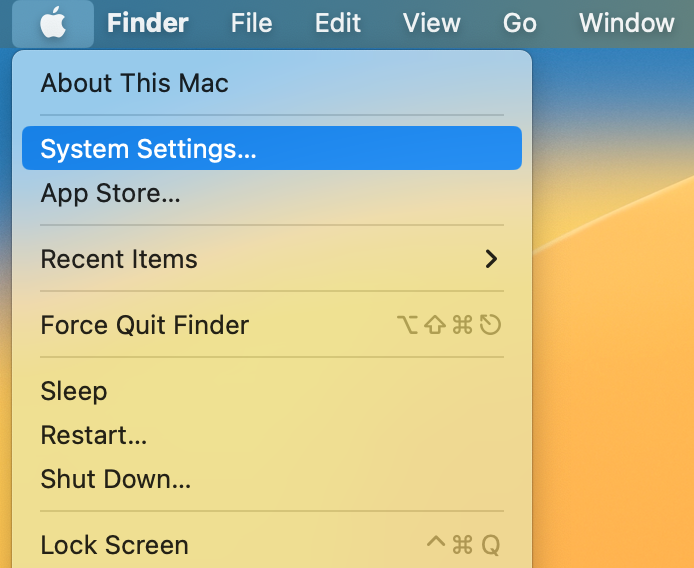
- Click on the Apple logo in the top-left corner of the screen.
- Select "System Settings" (or it may be called “System Preferences”) from the dropdown menu.
- Look for "Software Update." If you don’t see that option: click “General” and then “Software Update”.
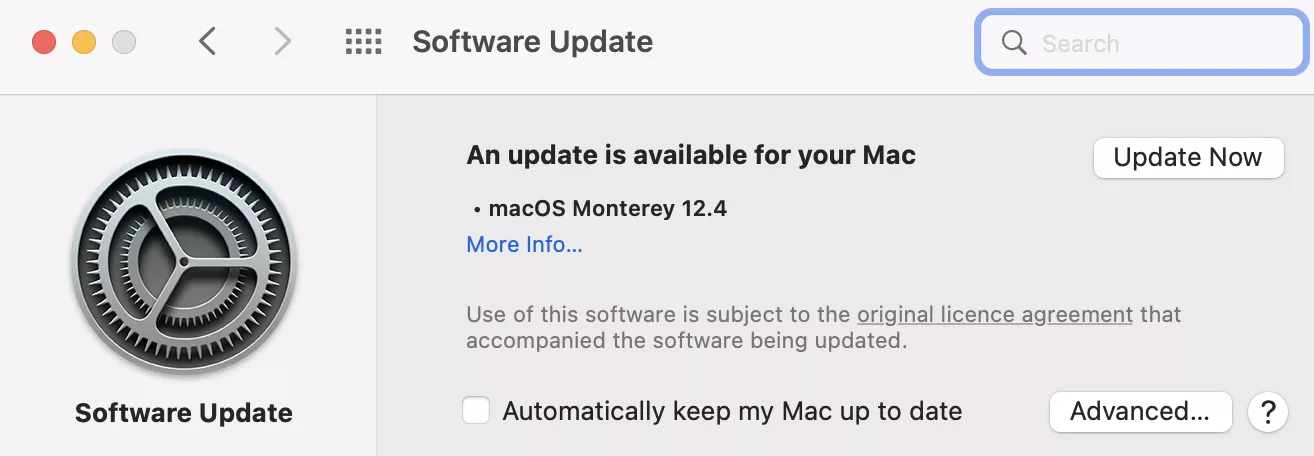
- Your Mac will automatically check for updates. If an update is available, you'll see a message with details about the update and an option to download and install it.
🆚 Upgrade vs. Update
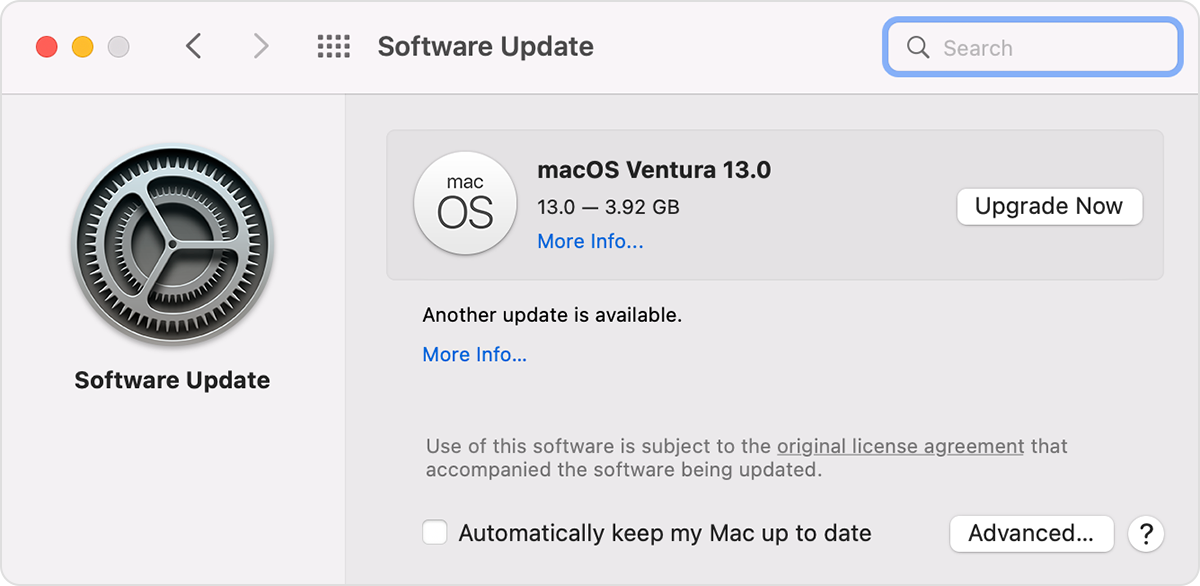
The “Software Update” screen is where you will find simple updates to your OS, but also upgrades to entirely new versions of MacOS.
Upgrade
An upgrade is a major update to the MacOS system. You will find a significant number of feature, appearance, and sometimes even speed improvements to your computer. Upgrades are usually delinated in the “Software Update” screen in a separate box.
List of MacOS upgrades
Here is the list of major version changes to see where you are in the upgrade succession:
- NEWEST: Sequoia
- Sonoma
- Ventura
- Monterey
- Big Sur
- Catalina
- Mojave
- High Sierra
- Sierra
Update
An update is a minor change to the MacOS system that patches bugs and security holes. There will usually not be major feature or appearance changes, but you may find the computer operates better after.
🦺 How to prepare for an OS update or upgrade
Before you update, there’s a couple things you may want to do to make sure it goes smoothly:
⛔ Close all running applications
Ensure you've saved and closed any open applications to prevent data loss or corruption during the update.
There are two ways to quit apps. Keep in mind: Simply clicking the red dot in the upper right-hand corner of a window usually doesn’t quit an app! Follow the instructions below to quit your apps completely and let them update as necessary (especially your browser!).
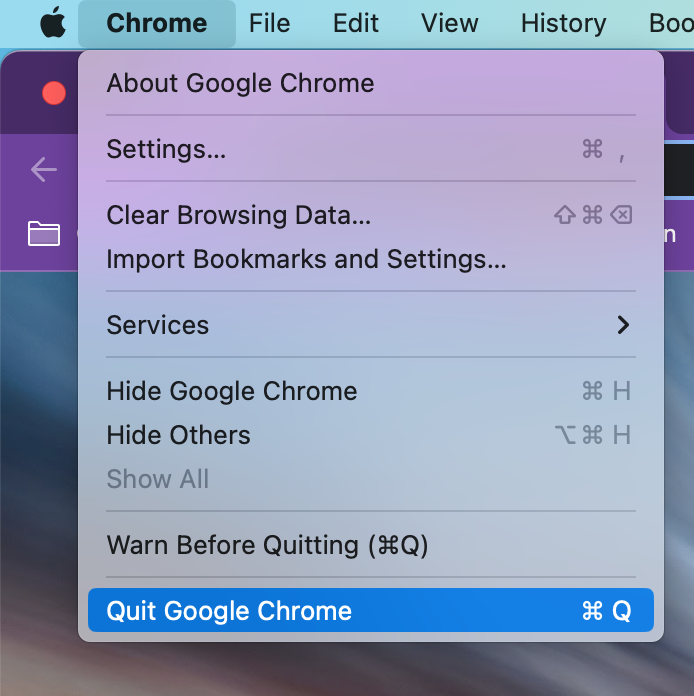
Quit from the menu bar
- Start by clicking on the window of an application you want to quit. The menu bar will change to that application’s options.
- Click the name of the application (it’s always next to the Apple logo menu).
- Click “Quit” at the bottom of the list.
Quit from the dock
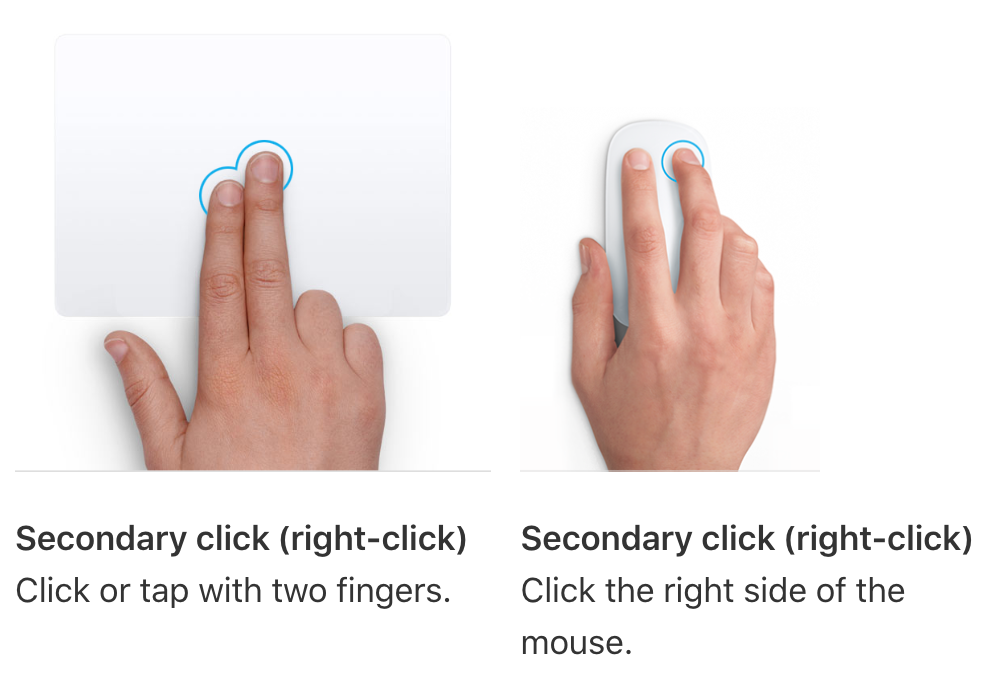
- Your dock, at the bottom of the screen – where all your application icons are – can also be used to quit.
- Make sure the dock is in view, and hover over the application you want to quit.
- Use the “right click” or “two-finger click” or hold down the Control key before clicking on the app icon.
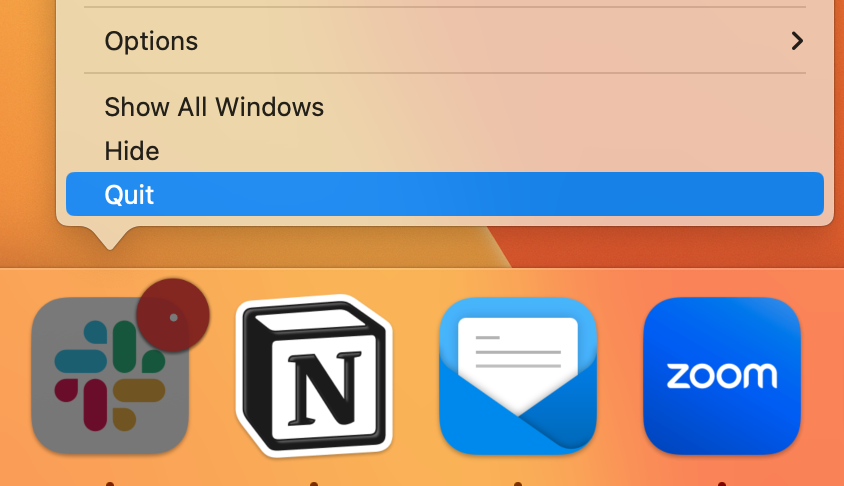
Once the menu pops up, click the Quit option:
🔋Charge your laptop or plug it in
Check your charge by clicking on the battery icon in the menu bar at the top right-hand corner of your screen. You should be at 75% or higher to begin a computer update. If not, just go ahead and plug it in to make sure it can charge while it’s updating.
🕰️ Make sure you have enough time
Updating your OS can sometimes take a few hours – particularly if it’s been a long time since you updated.
During this time, you will not be able to use your computer. So allocate plenty of time for the update to run – the best time for this is usually overnight!

🏁 Start the update or upgrade
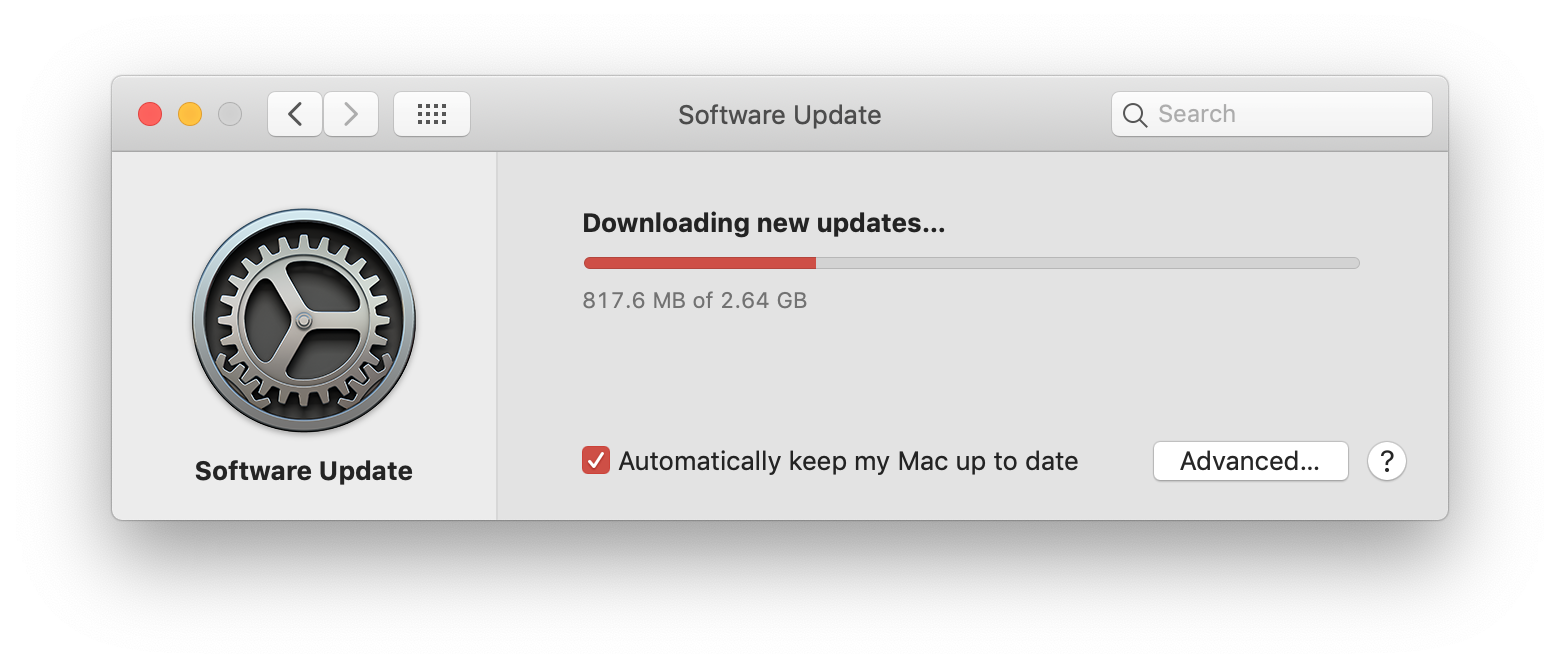
In the Software Update menu on Mac, you can begin the download of the update or upgrade. It may take 20-30 minutes to download the new update.
Once the download completes and is prepared, you will manually have to approve the process to proceed. Make sure to do that before leaving your Mac to complete the process!