
Computer basics tutorial
Restarting your computer
Last updated November 21, 2025
Of all the things you can do to maintain your computer every week, restarting your computer – as rudimentary and basic as it seems! – is the most important. The best part is, this only takes a minute or two but it’ll end up saving you more time in the long run!
💡 Why restarting is so important
York College has a great explainer on why restarting your computer is super helpful. Here’s some of most important points:
- Helps your computer run smoothly: In short, restarting refreshes the system, releasing internal processes that might be overloading your system’s memory and processor.
- Fixes the most urgent issues: If your computer feels hot, the fan is making excessive noise or running a lot, you’re experiencing application crashes, a file or page won’t open, or you’re having internet connectivity issues, restarting will often fix these issues!
- Keeps your machine more secure: Most programs, including your Operating System, need to restart to patch with new security and stability updates. And these days, those kinds of updates are delivered to your computer automatically in the background – but they can’t be applied unless you restart! You’d be shocked to learn how many times a “bug” you’re experiencing is actually the result of an out-of-date piece of software simply breaking and no longer working because it hasn’t been updated recently.
- Saves you time: As with the first item in this list, your programs and overall computer will slow down as more and more items are running in the background. Over time, this starts to add up with lost productivity (not to mention frustration on your part with a slow computer)! Restarting can help everything move a lot quicker and allow you to get work done faster, instead of sitting and waiting on your computer.
Sleep mode is NOT a restart
Each time your computer goes to sleep (like when you close the screen, or the screen goes black because you’ve been gone for a while and you have to log back in), it may seem like you’re starting fresh, but this process of waking up does not do any of the things that an actual restart does for your computer. You need to use the restart process described below to actually get the full benefits of restarting!
If you see this, you’ve waited too long already
Take a look at your Google Chrome browser, near the upper right-hand corner. Do you see a red bubble that says Update? If so, your browser is dangerously out of date.
Browsers like Google Chrome now receive updates on almost a weekly basis, in the background, to ensure that known security issues are patched. These kinds of security issues can put you at risk from poorly coded websites or out-of-date programming languages on the web. A malicious website could automatically install dangerous software on your computer, without you even noticing!
These quick updates are small changes to the code of the browser, which means they’re convenient to apply (by restarting!), but on the other hand they require you to be more diligent about restarting regularly.
Learn more about the security issues of an out-of-date web browser.

⛔ How to quit your apps
For maximum benefit, you should quit your open apps before restarting. This takes just a moment.
There are two ways to quit apps. Keep in mind: Simply clicking the red dot in the upper right-hand corner of a window usually doesn’t quit an app! Follow the instructions below to quit your apps completely and let them update as necessary (especially your browser!).
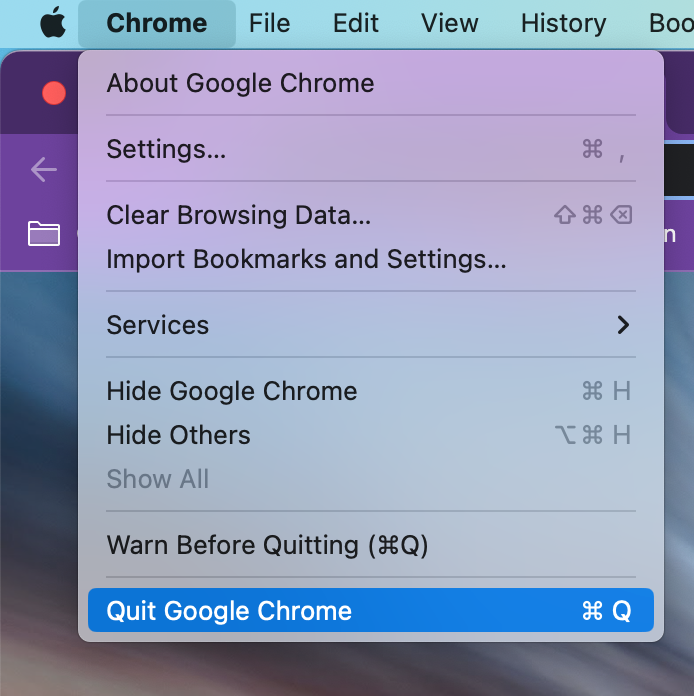
Quit from the menu bar
- Start by clicking on the window of an application you want to quit. The menu bar will change to that application’s options.
- Click the name of the application (it’s always next to the Apple logo menu).
- Click “Quit” at the bottom of the list.
Quit from the dock
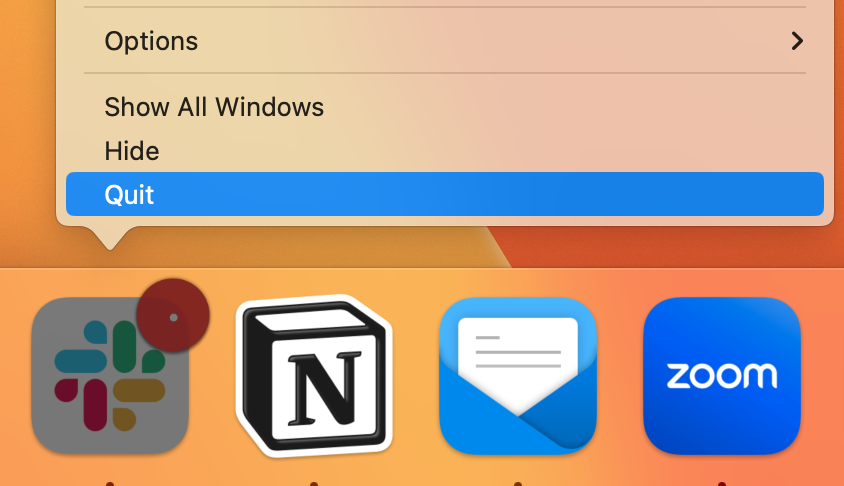
- Your dock, at the bottom of the screen – where all your application icons are – can also be used to quit.
- Make sure the dock is in view, and hover over the application you want to quit.
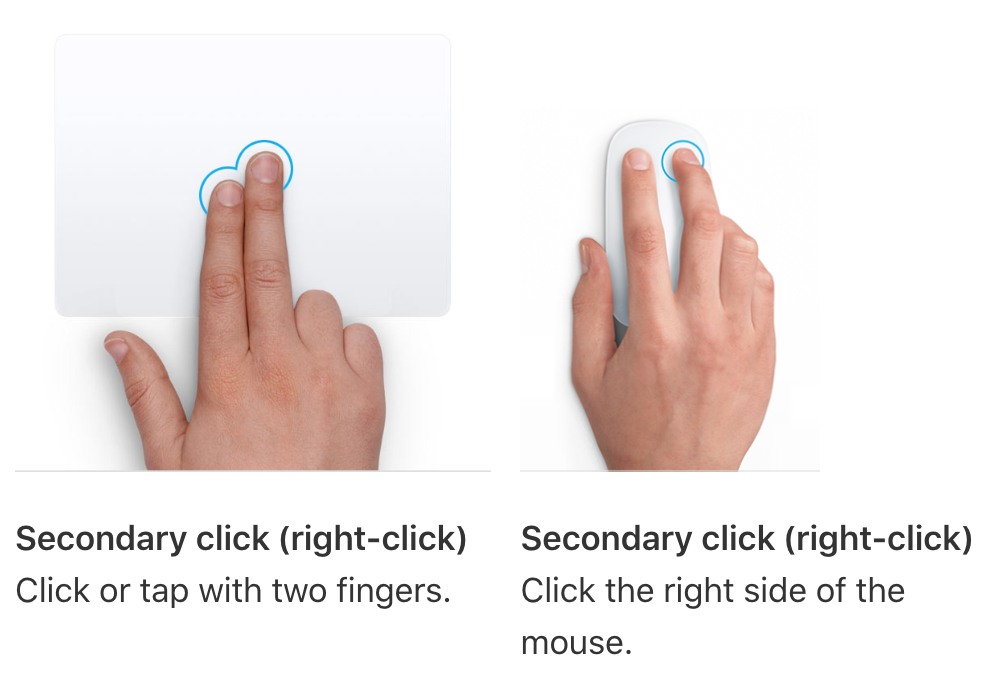
- Use the “right click” or “two-finger click” or hold down the Control key before clicking on the app icon.
Once the menu pops up, click the Quit option:
♻️ How to restart your computer
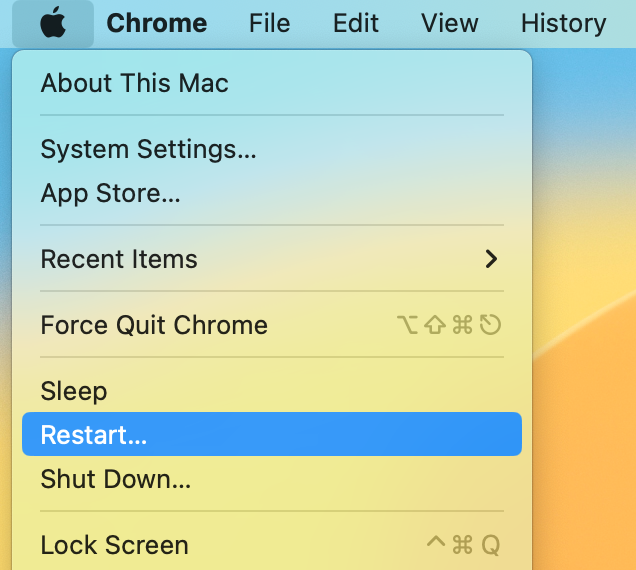
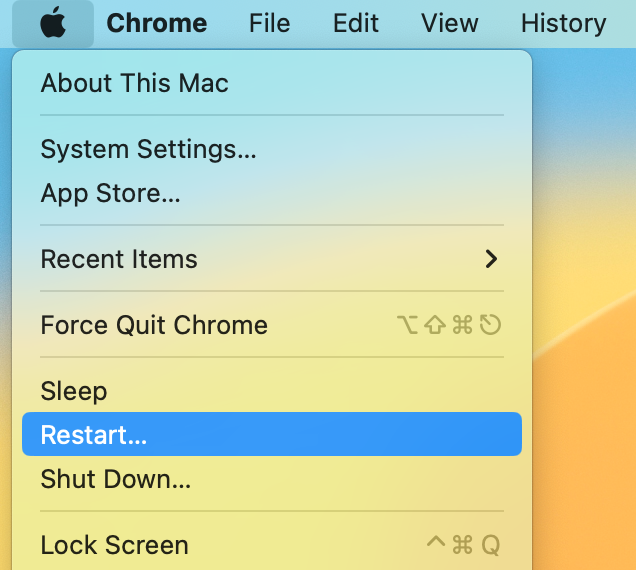
The only way to safely restart your computer is via the Apple logo menu in the upper left-hand corner of your screen:
📦 How to restore Chrome browser tabs
Almost certainly the biggest concern most people have about restarting is losing all their precious browser tabs! But good news: Your tabs are always saved by Google Chrome when you restart.
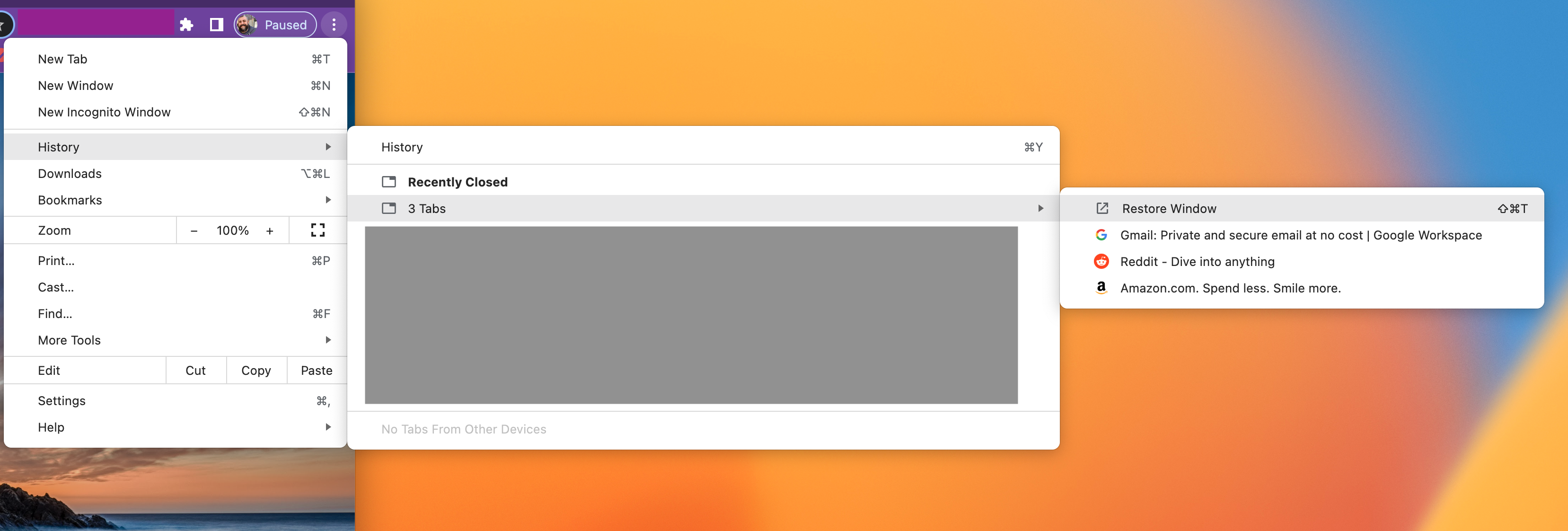
Once you’ve restarted your computer, simply re-open Google Chrome. If your previous tabs don’t open and reload immediately, you can still retrieve them simply by:
- Clicking on the three-dot menu in the upper right-hand corner of your browser
- Clicking on the History menu
- Clicking on the most recent set of tabs, and then “Restore Window” to reopen all the tabs at once
Troubleshooting
Sometimes you may re-open Chrome, and then the History menu, and not see your tabs there. Don’t panic!
Chances are, you were working in a different Chrome profile, and your tabs were saved there. Simply click the “Profiles” menu, at the very top of your screen when Chrome is in focus, and see if there’s another profile available. If so, open that profile and try following the instructions above to restore your tabs.